Ir al contenido
Igloo
  • 0
  • Iniciar sesión
  • AR CS NL EN FI FR DE HI IT PL PT ES SV UK
  • Contáctenos
  • Inicio
  • Tienda
  • ​Soporte

    For user


    Support requestCustomer surveyList of all test instructions QC procedureResults evaluation

    For Test Manufacturer


    Test adaptationStep 1 | Get your Igloo Step 2 | Test calibration Step 3 | Place barcode on cartridge

    For Pharmasist


    Add to Igloo Health Map Customised Report Request
  • Descargas
  • Documentos
  • Soluciones empresariales


     For Bisnesses


    Point-of-care businesses Pharmacies Dental clinics

    Coming soon*


    Gyms and fitness centers Telemedecine Cosmetology and beauty salons Midwifery care
  • Science hub


    Biomarkers


    Ferritin Vitamin D TSHHbA1cLipoprotein AApolipoprotein Bhs-CRP

    Technology


    Igloo Reader Pro
  • Noticias
  • Contáctenos
Igloo
  • 0
    • Inicio
    • Tienda
    • ​Soporte
    • Descargas
    • Documentos
    • Soluciones empresariales
    • Science hub
    • Noticias
    • Contáctenos
  • AR CS NL EN FI FR DE HI IT PL PT ES SV UK
  • Iniciar sesión
  • Contáctenos

QC Procedure 

Using Igloo Reader Pro with QC Calibration Test

Step 1: 
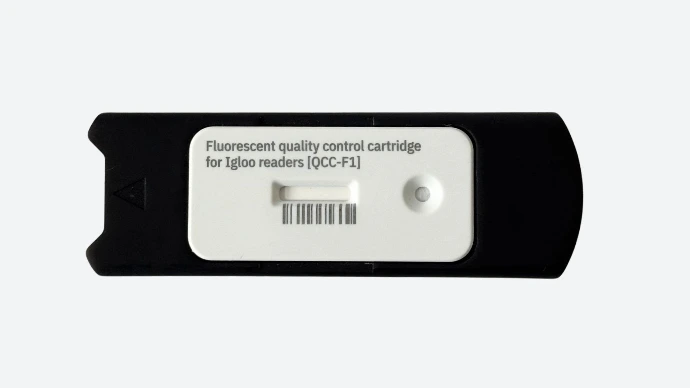

Prepare the QC Cartridge

  • Make sure you have an official QC calibration cassette (purchased separately)
  • Insert the cassette into the designated QC adapter
  • Ensure the cassette is undamaged and not expired


Step 2: 
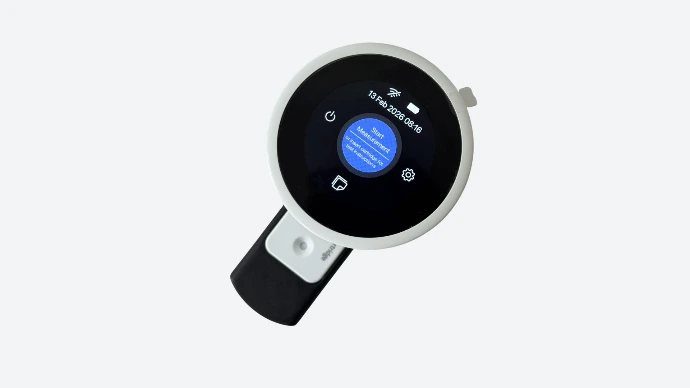

Power on the Reader

  • Press and hold the round power button located on the bottom side of the Igloo Reader Pro
  • Wait for the screen to fully load to the main menu

Step 3: 
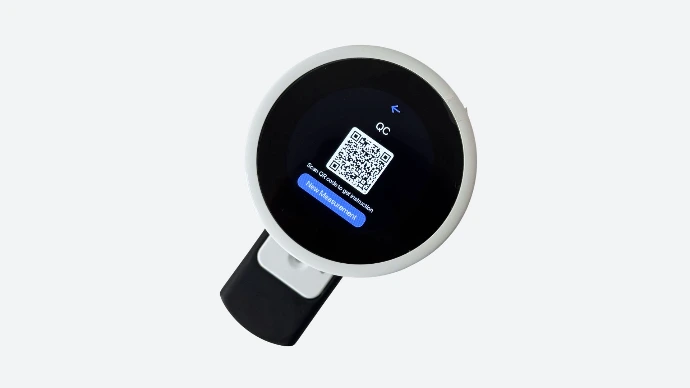

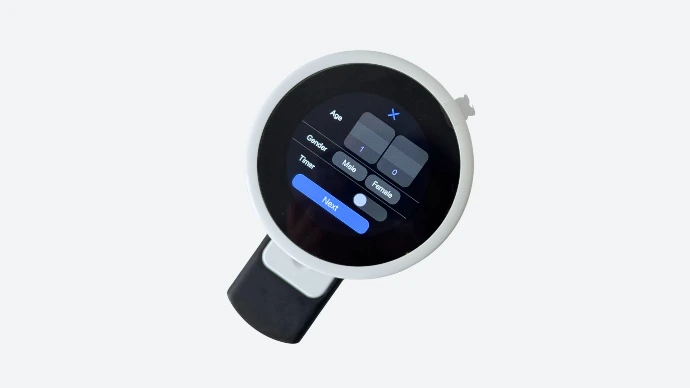
Insert the Adapter into the Reader

  • Place the adapter with the QC cassette into the reader slot
  • Make sure it is fully inserted and properly aligned


Step 4: 


Automatic QC Detection

  • The reader will automatically recognize the QC process
  • No manual action is required — the system will start the validation check


Step 5: 


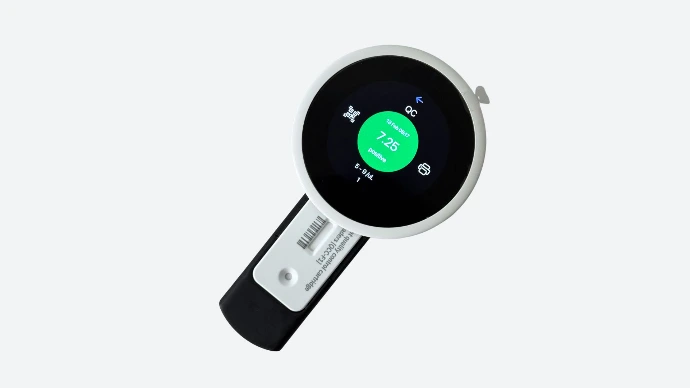
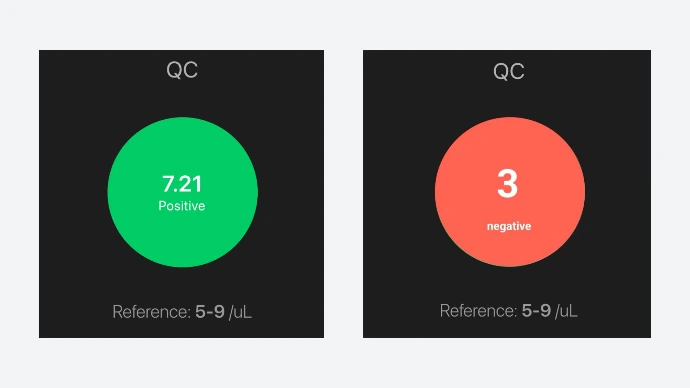
Wait for Result

  • The display will show:

      • ✅ QC successful — validity extended for 12 months
      • ❌ QC failed — repeat test or contact technical support

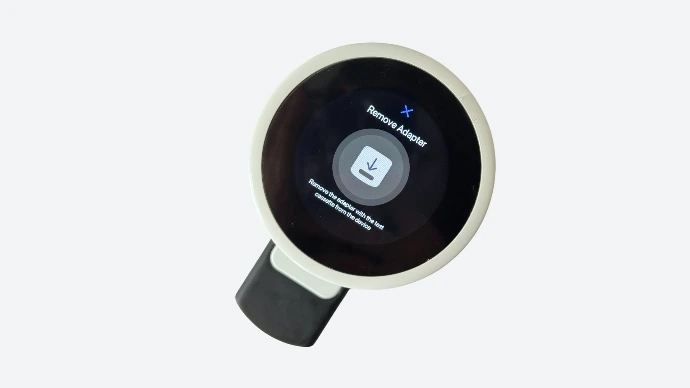
⚠️ Do not remove the adapter during this step. Removing it will cancel the test.

Step 6: 


Confirm QC Status

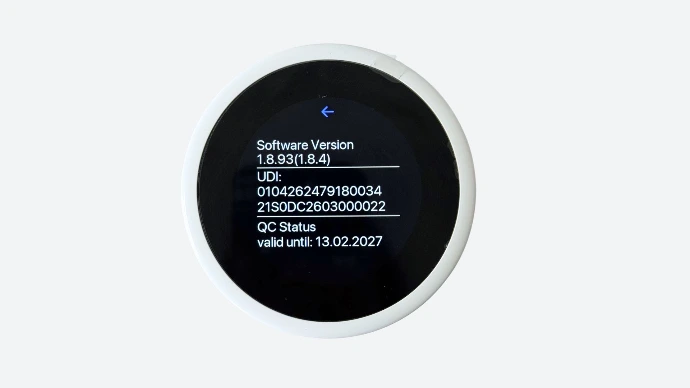
  • To verify the QC expiration:

      • Go to Settings → About
      • Check the field: QC valid until [date]


Legal

  • Imprint
  • Legal info
  • Privacy policy
  • Cookie policy
  • Sales terms and conditions


Atención al cliente

  • Support Request Center
  • Contáctenos
  • Downloads
  • Documents
  • Test Instructions
  • Test Manufacturer Instructions


Social Networks

Social Media

© Dx365 GmbH - Términos y condiciones - Política de privacidad
الْعَرَبيّة | Čeština | Nederlands | English (US) | Suomi | Français | Deutsch | हिंदी | Italiano | Język polski | Português | Español | Svenska | українська
Con tecnología de Odoo - El mejor Comercio electrónico de código abierto

Respecting your privacy is our priority.

Allow the use of cookies from this website on this browser?

We use cookies to provide improved experience on this website. You can learn more about our cookies and how we use them in our Política de cookies.

Allow all cookies
Only allow essential cookies