Se rendre au contenu
  • +1 555-555-5556
Igloo
  • 0
  • Se connecter
  • AR CS NL EN FI FR DE HI IT PL PT ES SV UK
  • Contactez-nous
  • Accueil
  • Boutique
  • Support

    For user


    Support requestCustomer surveyList of all test instructions QC procedureResults evaluation

    For Test Manufacturer


    Test adaptationStep 1 | Get your Igloo Step 2 | Test calibration Step 3 | Place barcode on cartridge

    For Pharmasist


    Add to Igloo Health Map Customised Report Request
  • Downloads
  • Documents
  • For businesses


     For Businesses


    Point-of-care businesses Pharmacies Dental clinics

    Coming soon*


    Gyms and fitness centers Telemedecine Cosmetology and beauty salons Midwifery care
  • Science hub


    Biomarkers


    Ferritin Vitamin D TSHLipid panelHbA1chs-CRPTestosteroneApolipoprotein BLipoprotein A

    Technology


    Igloo Reader Pro

    Company


    About Dx365
  • News
  • Contactez-nous
Igloo
  • 0
    • Accueil
    • Boutique
    • Support
    • Downloads
    • Documents
    • For businesses
    • Science hub
    • News
    • Contactez-nous
  • +1 555-555-5556
  • AR CS NL EN FI FR DE HI IT PL PT ES SV UK
  • Se connecter
  • Contactez-nous

QC Procedure 

Using Igloo Reader Pro with QC Calibration Test

Step 1: 
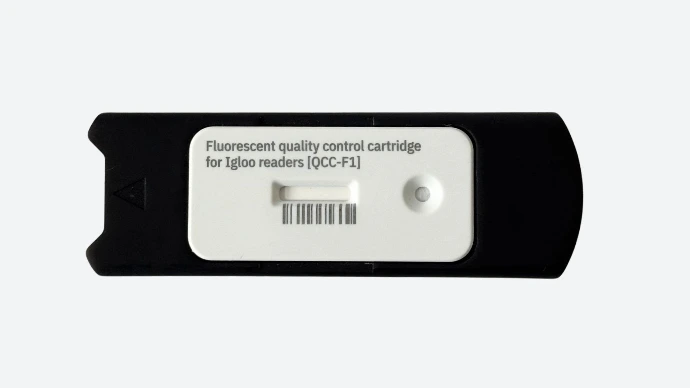

Prepare the QC Cartridge

  • Make sure you have an official QC calibration cassette 
  • Insert the cassette into the designated QC adapter
  • Ensure the cassette is undamaged and not expired

Step 2: 
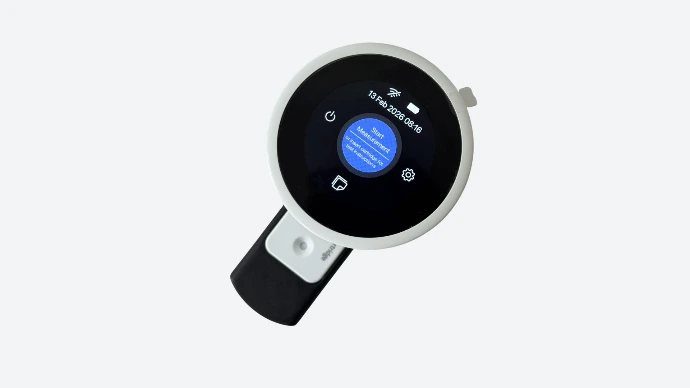

Power on the Reader

  • Press and hold the round power button located on the bottom side of the Igloo Reader Pro
  • Wait for the screen to fully load to the main menu

Step 3: 
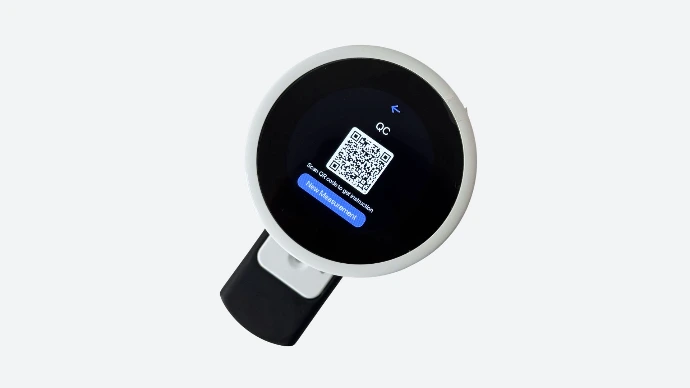

Insert the Adapter into the Reader

Insert the adapter into the reader (the arrow shows which side the adapter should face) and wait until the QR code appears on the screen and the Start measurement button becomes available.

Step 4: 


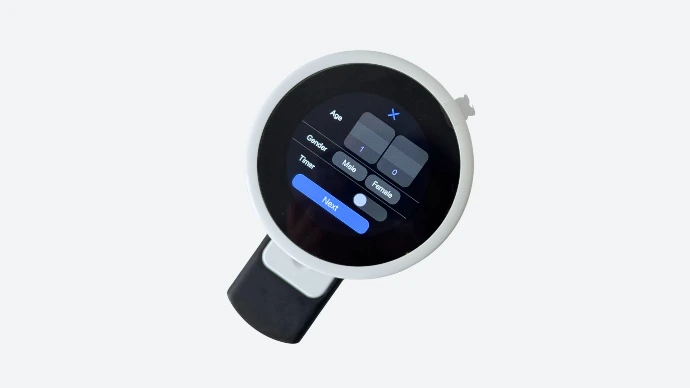
Data can be left blank

You can skip the timer and leave the fields empty when performing the QC test

Step 5: 


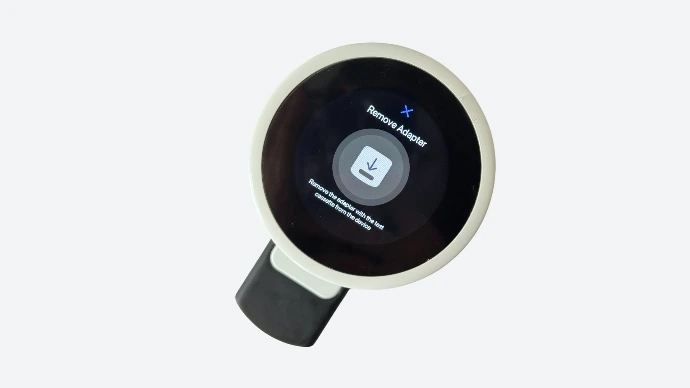
Follow the on-screen instructions

Remove the QC test and insert it again

Step 6: 


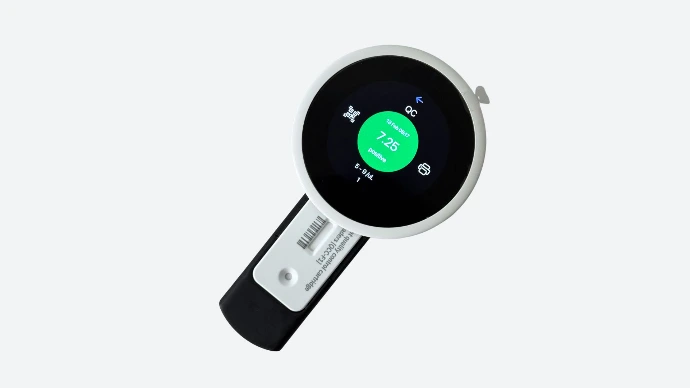
The reader calibration using the QC test has been successfully completed


Step 7: 
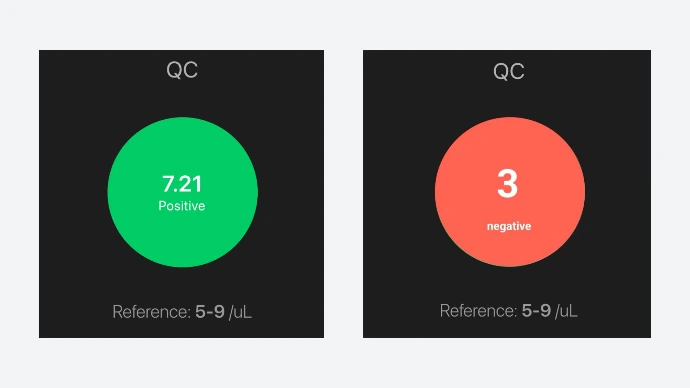

Reference value check

In normal conditions, the reference value should be between 5 and 9, any other value is incorrect and outside the normal range.

  • ✅ QC successful — validity extended for 12 months
  • ❌ QC failed — repeat test or contact technical support

Step 8: 
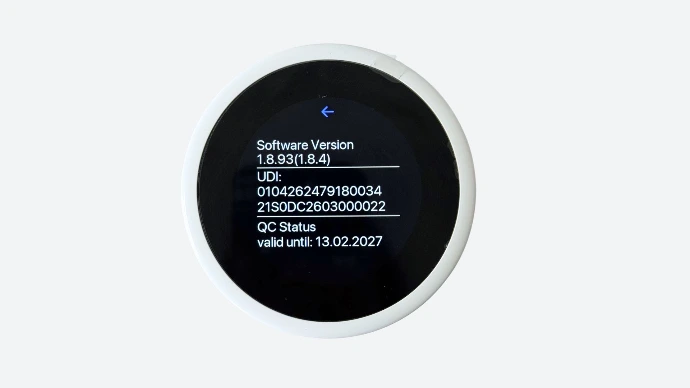

Confirm QC Status

To verify the QC expiration:
    • Go to Settings → About
    • Check the field: QC valid until [date]
Legal

  • Imprint
  • Legal info
  • Privacy policy
  • Cookie policy
  • Sales terms and conditions


Service Clientèle

  • Support Request Center
  • Contactez-nous
  • Downloads
  • Documents
  • Test Instructions
  • Test Manufacturer Instructions
Phone support

  • +49 40 3680 74990
Social Networks

Social Media

© Dx365 GmbH - Conditions générales - Politique de confidentialité
الْعَرَبيّة | Čeština | Nederlands | English (US) | Suomi | Français | Deutsch | हिंदी | Italiano | Język polski | Português | Español | Svenska | українська
Généré par Odoo - Le #1 Open Source eCommerce

Respecting your privacy is our priority.

Allow the use of cookies from this website on this browser?

We use cookies to provide improved experience on this website. You can learn more about our cookies and how we use them in our Politique en matière de cookies.

Allow all cookies
Only allow essential cookies