Overslaan naar inhoud
Igloo
  • 0
  • Aanmelden
  • AR CS NL EN FI FR DE HI IT PL PT ES SV UK
  • Ons contacteren
  • Startpagina
  • Shop
  • Support

    For user


    Support requestList of all test instructions QC procedureResults evaluation

    For Test Manufacturer


    Test adaptationStep 1 | Get your Igloo Step 2 | Test calibration Step 3 | Place barcode on cartridge

    For Pharmasist


    Add to Igloo Health Map
  • Downloads
  • Documents
  • For businesses

    Coming: Gyms and fitness centers

    Coming: Telemedecine


    Coming: Cosmetology and beauty salons

    Point-of-care businesses


    Pharmacies


    Dental clinics


  • Biomarkers
    About biomarkers Ferritin Vitamin DTSHHbA1c
  • News
  • Contact
Igloo
  • 0
    • Startpagina
    • Shop
    • Support
    • Downloads
    • Documents
    • For businesses
    • Biomarkers
    • News
    • Contact
  • AR CS NL EN FI FR DE HI IT PL PT ES SV UK
  • Aanmelden
  • Ons contacteren
  1. Cursussen
  2. Making a measurement with Igloo Reader Pro
  3. Introduction
Nav
Startpagina └Making a measurement with Igloo Reader Pro └Introduction

Making a measurement with Igloo Reader Pro

0 %

Voltooid

Cursusinhoud
  • Geen categorie
    • Introduction

Introduction

Vorige Volgende
Volledig scherm Delen

Introduction 

Step 1 : Prepare Your Workspace and Turn On the Device

What You Need:

  • Dx365 Igloo Reader Pro 
  • Cassette adapter, specific to the test type
  • Lateral flow test kit with included test cassette, instruction and sample collection tools
  • Clean, flat surface away from liquids
Turn on the device by pressing the button on the bottom side of the reader. The screen will light up, and the main menu will appear after loading.
On/Off button located below


Step 2 : Set Up the Device and Enter Measurement Data

Steps:

💡

Connect WI-FI for the first measurement. This is necessary to perform a specific calibration update.

Connect the device to Wi-Fi:

  1. Go to the settings menu and ensure the Wi-Fi module
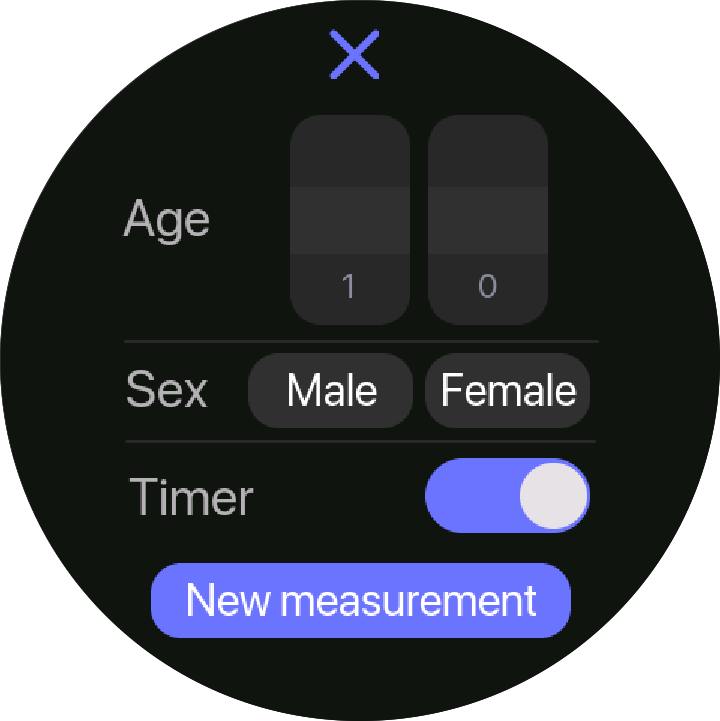
  2. From the main menu, select "New Measurement" on the touch display
  3. Fill in the required parameters:
    • Patient ID (optional)
    • Age and sex (optional)

  4. Press the "Ok" button and prepare the test cassette
Step 3 : Prepare and Insert the Test Cassette

Steps:

  1. Please review the test manufacturers instructions before the collecting blood
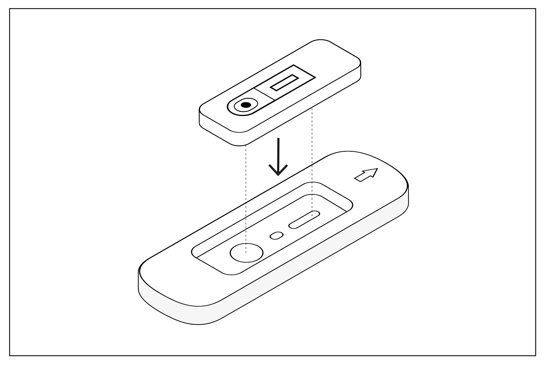
  2. Place the test cassette into the cassette adapter:
    • Ensure the test strip faces up
    • The sample well must face outward (toward the outside of the device)
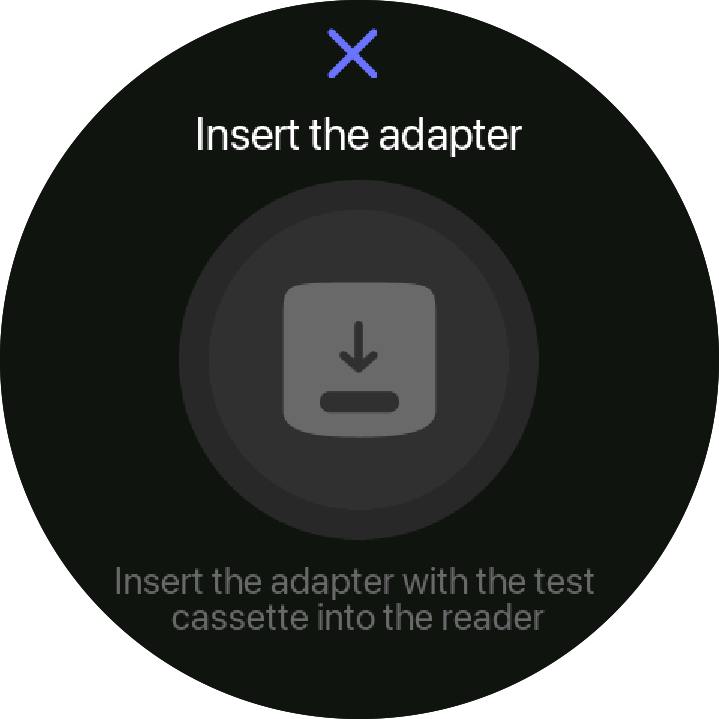
  3. Insert the adapter with the test cassette into the device slot, following the adapter’s direction
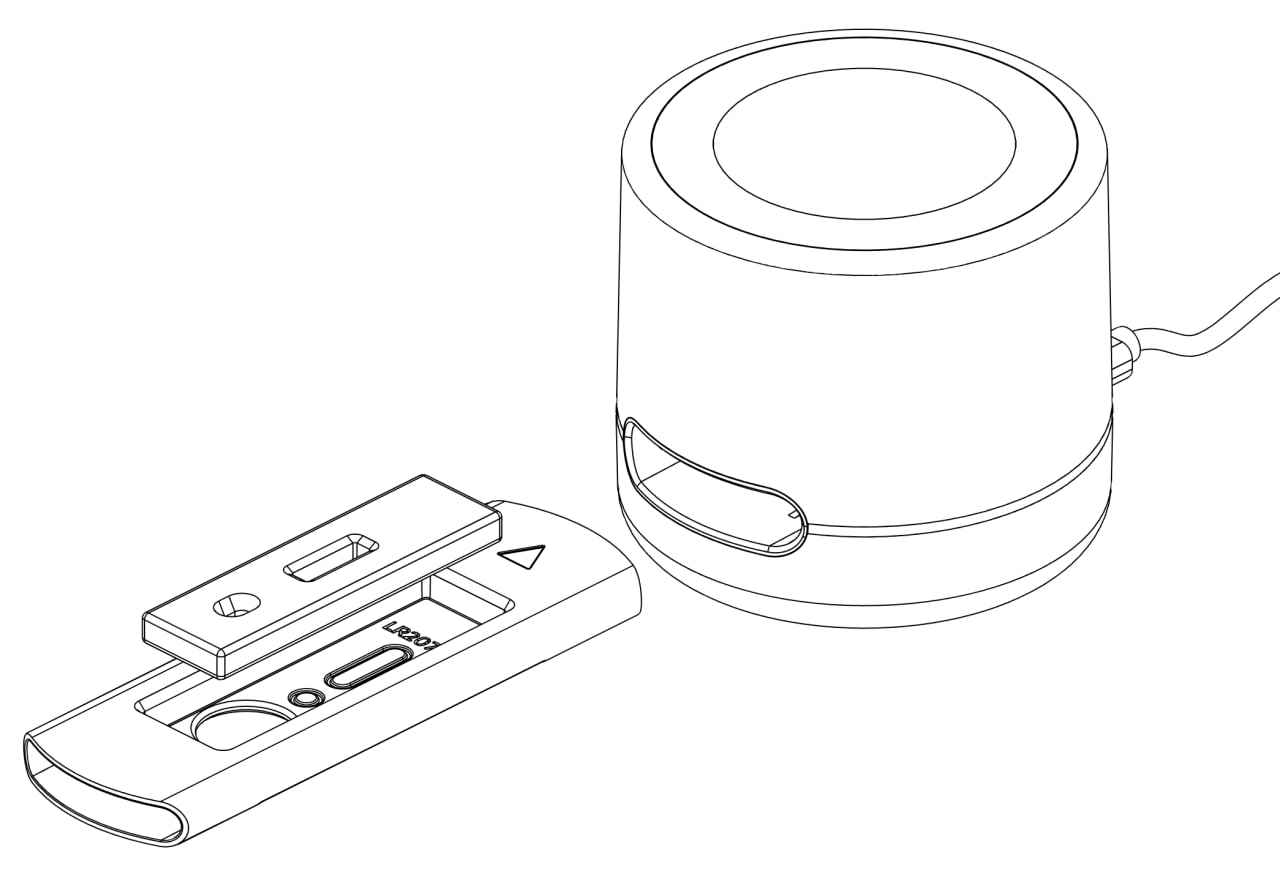
  4. ​The measurement will start automatically after you insert the adapter with the test
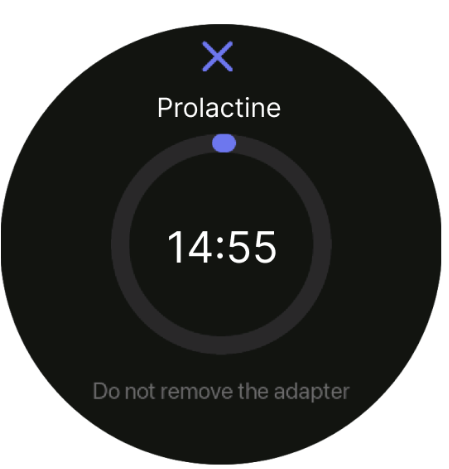
  5. Wait for the measurement to complete. Do not move or eject the adapter during this process, as it may lead to incorrect results


Step 4 : View and Share Results

Steps:

  1. When the measurement is complete, the device indicator will stop rotating                
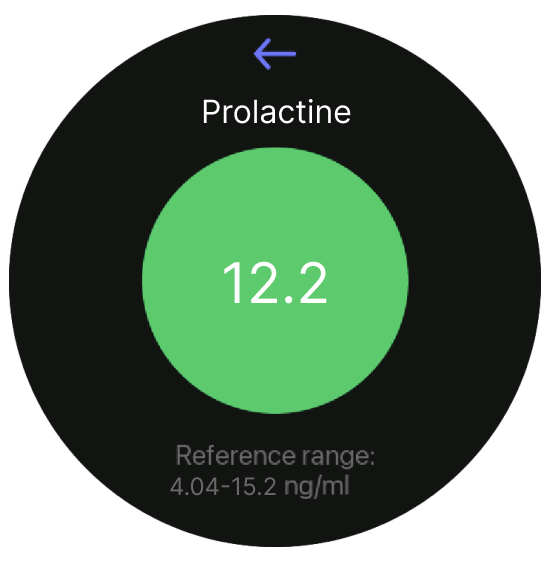
  2. The results will display on the screen (qualitative, semi-quantitative, or quantitative, depending on the test type)
  3. To share or save the results:
    • Use the application menu to export the result to a connected printer (if available)
  4. Eject the cassette adapter, remove the used test cassette


  • Over
  • Comments (0)


Beoordeling
0 0

Er zijn momenteel geen reacties.

Meld je aan voor deze cursus
om als eerste een reactie achter te laten.

Copyright © Dx365 GmbH
الْعَرَبيّة | Čeština | Nederlands | English (US) | Suomi | Français | Deutsch | हिंदी | Italiano | Język polski | Português | Español | Svenska | українська
Aangeboden door Odoo - De #1 Open source e-commerce

Respecting your privacy is our priority.

Allow the use of cookies from this website on this browser?

We use cookies to provide improved experience on this website. You can learn more about our cookies and how we use them in our Cookiebeleid.

Allow all cookies
Only allow essential cookies